
Google Business Profile Verification Problems Explained: How to Get Verified and Stay Visible in 2026
By The Team at Cut Throat Marketing, Columbia, SC
If you’re reading this, you’ve likely reached the biggest gatekeeper to establishing your local online presence: Google Business Profile (GBP) verification.
Let’s be real: the era of waiting on a postcard, entering a short code, and instantly appearing on Google Maps is over. Google now applies far more scrutiny to Google Business Profile verification, and many business owners quickly discover that the old postcard method is no longer the default—leading them to search for how to verify a Google Business Profile without a postcard.. What was once a quick administrative task has evolved into a multi-step screening process meant to weed out fake listings, side hustles, and low-effort operations.
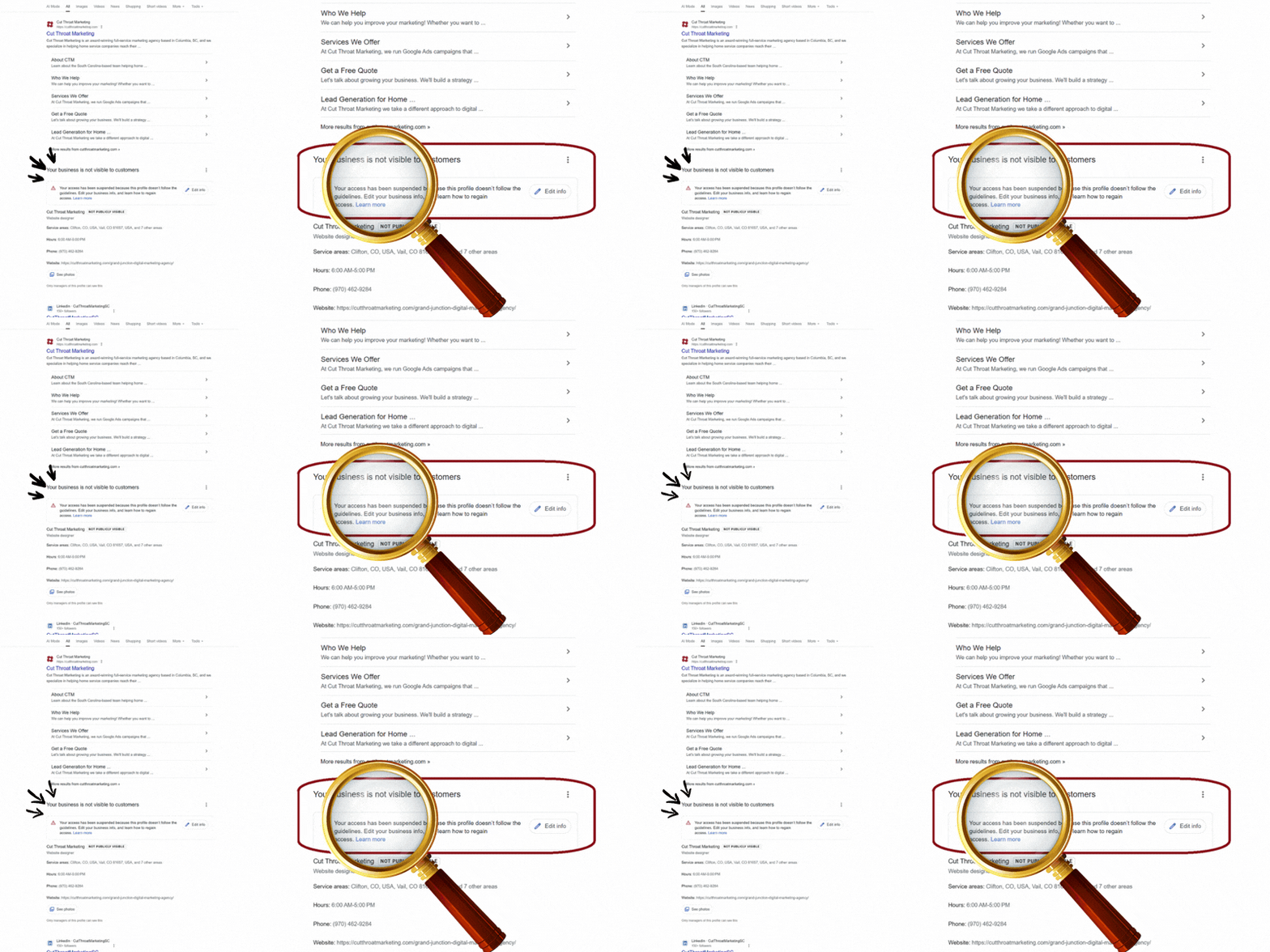
For legitimate business owners—whether you operate a brick-and-mortar location in Columbia, SC, or run a service area business serving the greater Midlands—this heightened level of review can feel excessive and often leads to the question, “why is my business not showing up on Google search?” It often leaves you asking, Why is this so complicated? What exactly is Google looking for?
The short answer: clear proof. Google wants concrete, verifiable evidence that your business is real—complete with a consistent name, a valid operating location (or service setup), and the tools required to deliver the services you advertise.
As frustrating as the process can be, this stricter approach ultimately works in your favor. Once verified, you’re no longer competing with ghost listings or fake businesses. Verification is what unlocks real visibility on Search and Maps—and turns that visibility into calls, jobs, and revenue. Without it, you may find your Google Maps business listing not showing, even though everything looks correct on your end.
At Cut Throat Marketing, we’ve guided dozens of businesses through this process. We’ve seen the odd requirements, the missed details, the odometer close-ups, the blurry signage, and yes—the occasional “show us the bathroom” request. That experience is exactly why we built this playbook: to help real businesses navigate Google’s 2025 “prove you’re legitimate” verification process without wasted time or guesswork.
Section 1: The New Reality of Proof (Universal Checklist)
Before you even think about hitting the “submit” button, you need to ensure every piece of your paper and digital trail is consistent. Mismatches – like using “LLC” on one document and omitting it on your signage, or abbreviating “Suite” to “Ste.” – are the fastest route to an instant rejection.
Google is looking for a comprehensive, consistent narrative that proves your business exists beyond a website and a phone number.
1. Identity & Address Documents
NAP Consistency Is Everything
The business Name, Address, and Phone number (NAP) on your documents must exactly match your Google Business Profile. Even small differences—like “Ste” vs. “Suite” or missing “LLC”—can trigger a denial.
Below are the most commonly accepted document categories. You’ll typically need at least two from different groups.
Legal & Tax Documents
These establish who the business legally is.
- Business license or registration certificate
→ Must show the full legal business name - Articles of organization/incorporation or DBA (trade name) filing
→ Confirms the official business structure and naming, but only works if the business address is on the document. - EIN or IRS tax ID confirmation letter
→ Business name and address must match exactly
Location & Address Proof
These confirm where your business legally operates.
- Lease agreement or property deed
→ Full, exact street address (including suite number) and business name must match your GBP - Utility bills (power, water, internet, or phone)
→ Service address and business name must match your GBP profile - Certificate of occupancy or local operating permits
→ Confirms authorized operation at the listed address; name and address must match the business profile
Financial & Insurance Documents
These prove the business is active and operational.
- Bank statement or merchant account statement
→ Business name and service address must match your GBP - General liability or workers’ compensation insurance policies
→ Business name and service address must match exactly
Pro Tip: Pick Your “Source of Truth”
Google treats official documents as the highest authority. If your documents don’t match your profile, update the GBP first—or update the documents—before submitting anything. Consistency beats branding every time.
2. Branded Collateral & Operational Paper
This section proves you are an active, operational entity – not just a list of names on a document. Google wants to see the materials you use daily to run your business.
- Business Materials: Branded business cards, letterhead, brochures, rack cards, or menus.
- Job Paperwork: Proposal/estimate forms, work orders, job tickets, or carbonless invoice/receipt books.
- Tools & Tech: Show industry tools/equipment you actually use (show brand and context), uniforms, ID badges, or safety gear with your logo. You may need to show a laptop or tablet with your website, CRM, scheduling, or POS software open.
Having these items ready, whether physical or digital, is the foundation for a seamless verification process. Take pictures of the physical documents and have them handy.
Section 2: Verification Demands by Business Type
What Google Needs to See (Requirements)
Google applies the same verification standards to every business.
What changes is how those standards are proven, based on how your business operates.
In this section, we’re outlining what proof Google expects to see depending on whether customers come to you—or you go to them. This defines the requirements, not the filming technique.
A. For Physical Locations (Storefronts, Offices, Retail)
The goal of verification for a physical location is simple: prove that customers can visit you and that your business actively operates from the space.
1. Exterior & Location Context (Must Be Clear)
Google needs to see that your business is permanently and visibly located at the address you claim.
- Permanent exterior signage with your business name and/or logo
(No banners, yard signs, temporary vinyl, or magnets.)
→ Confirms your business is physically established and identifiable. - Street or intersection view showing neighboring landmarks, followed by a walk-up to your entrance
→ Grounds your business in a real-world location Google can recognize. - Building directory listing (for multi-tenant buildings) showing your business name and suite or floor number
→ Proves your specific presence inside a shared structure.
2. Interior Proof (Customer & Staff Areas)
Google wants proof that the location is both accessible and operational.
Customer-Facing Areas
- Lobby, reception desk, waiting area
- Conference room, design room, showroom, or retail floor
→ Confirms customers are allowed to visit during business hours.
Staff-Only / Operational Areas
- Back offices, storage rooms
- Break rooms, workshops, or production areas
→ Proves you have dedicated space and real operational capacity.
3. Operational Proof (Show the Business in Action)
This confirms your business is active, staffed, and functioning.
- Technology in use: Computer, POS system, or tablet with your website, CRM, or scheduling software visible
→ Shows you actively operate the business. - A real person on-site: At least one employee (or you) working or demonstrating the space
→ Confirms the location is staffed and not a shell office.
Critical Pitfall: Shared or Virtual Offices
If your office requires a key card, concierge approval, or appointment-only access, Google may deny verification.
To qualify in a shared building, you must have:
- Your business name listed on the main lobby directory
- Your suite number clearly labeled on the door
- Interior signage that clearly identifies your business
If customers cannot freely access your location during posted hours, Google may consider it ineligible.
B. For Service Area Businesses (SABs)
Service Area Businesses (plumbers, HVAC, roofers, cleaners, contractors) don’t serve customers at their address. Because of this, Google shifts focus to mobile operations, equipment, and legitimacy.
1. Vehicle Proof (Top Priority)
Your work vehicle is the cornerstone of SAB verification.
- Branded work vehicle (wrap or permanent decal preferred; magnets often fail)
→ Full, slow walk-around of the exterior
→ Confirms a legitimate mobile business presence. - License plate clearly shown
→ Verifies the vehicle is registered and active. - Odometer reading with the vehicle turned on
→ Proves the vehicle is actively used for business travel (yes, Google really requires this).
2. Tools & Operational Evidence
Google needs to see that you can actually perform the services you advertise.
- Truck bed, van interior, or trailer filled with job-specific tools, equipment, or materials
→ Proves you are equipped to do real work. - Trade-specific tools or supplies
(HVAC equipment, cleaning chemicals, roofing materials, ladders, spray rigs, etc.)
→ Demonstrates authenticity of your trade.
3. Technology in Action
- Tablet, phone, or laptop showing your CRM, scheduling app, invoices, or job management software
→ Confirms active job scheduling and business operations.
C. For Hybrid Businesses (Storefront + SAB)
If your business has a physical location and you travel to perform services, Google considers this a Hybrid Profile. Hybrid businesses must meet the combined proof requirements of both Physical Locations and SABs.
Key Rule:
If you have a customer-accessible location and service customers at their address, your verification video must clearly demonstrate both operations.
The Hybrid Verification Strategy
- Start with the physical location: Show permanent exterior signage and customer-facing areas to establish legitimacy.
- Transition to operations: Walk through staff areas, back offices, or workshops.
- Prove mobility: Move to branded work vehicles and show decals, license plates, and tools.
- Operational proof (combined): Show both office-based technology and mobile technology, followed by documentation if requested.
Failure to show either the permanent customer-facing location or the branded service vehicle is a common reason hybrid profiles get rejected.
Section 3: Mastering the Video Verification
How to Get Verified on Attempt #1 (or #2) — and Avoid the “Nuclear Option”
The last explained what Google needs to see. This section is about execution—how to show that proof clearly so you get verified the first time (or, worst case, the second).
Most businesses don’t fail because they’re illegitimate. They fail because the video is rushed, unclear, shaky, missing key proof, or uploaded incorrectly. Google’s reviewers aren’t psychic—if you don’t show it clearly, they can’t assume it exists.
Treat your verification video like a single, continuous, narrated audition. Everything here is designed to prevent you from needing Section 5.
The Golden Rules of Video Submission
- One Continuous Take (Non-Negotiable):
The video must be one unedited recording. No cuts, no pauses, no transitions. - Keep It Short:
Aim for 60–90 seconds. Do not exceed the 3-minute hard limit. - Hold Each Item:
Pause 2–3 seconds on every critical item—signage, license plate, tools, documents. Fast, shaky footage gets rejected. - Use Good Quality:
Film in daylight when possible. Keep movement slow and steady. Limit background noise. - Use the Google Maps App:
You must record and upload directly in the app in one session. Uploads can fail—be prepared to restart the recording if needed.
The Narrative Flow for Storefronts (The Tour)
Follow this order to check Google’s boxes:
- Start Outside: Show the street view and neighboring landmarks for context. (Pause on a street sign or recognizable landmark.)
- Approach the Building: Walk slowly toward your permanent exterior signage. (Pause on the sign.)
- Enter: Walk through the main entrance.
- Customer Areas: Pan slowly through public spaces. (Pause at the reception/welcome desk.)
- Staff Areas: Show back offices, workspaces, or storage. (Pause in at least one staff-only area.)
- Operational Proof + Documentation: End with staff working or technology in use. (Pause on screens/software.) Then show your prepared documents and any branded collateral (business cards, invoices, etc.).
The Narrative Flow for Service Area Businesses (The Load-Out)
For SABs, the vehicle is the anchor:
- Start with the Vehicle: Full, slow walk-around of branded exterior. (Pause on logo/decals.)
- License Plate & Odometer: Pause clearly on both.
- Tools & Equipment: Open doors and pan across job materials. (Pause on tools.)
- Tech & Paperwork: Show CRM, scheduling app, or branded invoices. (Pause on each.)
- The Employee: Show yourself or a technician loading gear or doing a quick job-related action. (Pause long enough to be obvious.)
Note for Hybrid Businesses (Storefront + Service Area)
Hybrid businesses must complete both flows in a single video.
When recording outside the physical location, do SAB steps first:
- Vehicle walk-around with branding
- License plate and odometer
- Tools and equipment
Then proceed immediately into the full storefront narrative flow, starting with the exterior street view.
This sequencing ensures Google can verify both your public-facing location and your mobile operations without delays or rejections.

Section 4: Troubleshooting Common Roadblocks and Fixes
Even if you follow the rules perfectly, you might still get rejected or stuck. This is where you apply the Cut Throat approach: identify the problem and execute the fix without emotional attachment.
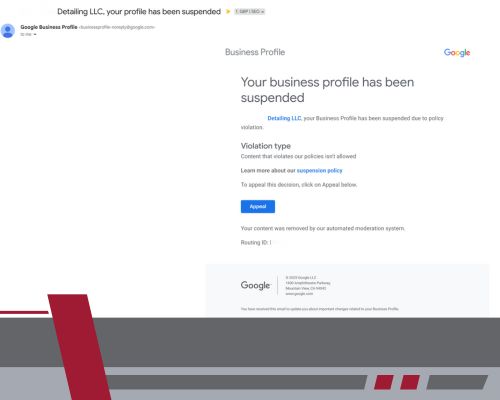
Roadblock 1: Vague “Policy Violation” Messages From Google (Usually Deceptive Content & Behavior)
Google almost never tells you exactly why your profile was denied or suspended. This is why many owners experience a Google Business Profile suspended or “not approved” status without a clear explanation. Instead, you’ll see generic messages like:
What Google may say:
- “Your Business Profile has been suspended due to policy violations.”
- “Your business doesn’t meet our guidelines.”
What this usually means:
In most cases, this falls under Deceptive content & behavior — not because you’re doing anything unethical, but because Google can’t confidently verify that your business is real, established, and operating as described.
The Fix:
Assume Google needs stronger proof and cleaner consistency.
- Eliminate anything that could look misleading or unverifiable.
- Strengthen real-world signals: permanent signage, matching documentation, and consistent online information.
Roadblock 2: Name or Address Inconsistencies (The #1 Reason Profiles Get Denied)
This is the most common trigger for denials and is almost always categorized as deceptive behavior.
Problem examples:
- Your license says “Roger Roofing LLC,” but your profile and signage say “Roger Roofing.”
- Your utility bill lists “Suite 201,” but your profile shows “Ste 201.”
- Your website or directories display a different address than the one in your GBP.
Why Google flags this:
Mismatches suggest impersonation, rank manipulation, or a fake location — even when it’s just formatting or branding shortcuts.
The Fix:
- Treat official documentation as the source of truth.
- Update your GBP to exactly match the most verifiable document (including legal suffixes).
- Then align your website, citations, and signage to match that same format.
Roadblock 3: Non-Permanent or Temporary Signage
Google will not accept yard signs, banners, magnets, temporary vinyl, or projections as proof of a legitimate business.
Problem examples:
- A magnetic sign on a work vehicle
- A temporary banner or removable window sign
- Printed paper signage taped inside a window
The Fix:
- Install permanent signage, such as:
- Vinyl decals are permanently affixed to vehicles
- Rigid exterior signs or plaques
- If located in a shared building, ensure your business name appears on the physical building directory, which counts as permanent proof.
Roadblock 4: Video Accepted, Then Profile Goes Back to “Processing” or Gets Denied Later
This can be caused by a technical issue, a delayed manual review, or a missed verification detail.
Problem:
Your video appears to have uploaded successfully, but after several days, your profile remains stuck in “processing,” becomes unverified, or the video fails to upload at all.
The Fix:
- Processing timeline: A 5–14-day review period is typical. If your profile remains in processing beyond that window, open a support ticket. Simply asking about the delay can sometimes prompt movement.
- Re-review the rules: Later denials usually mean something small but critical was missed—blurry signage, not enough time on the license plate, rushed interior footage, or unclear branding. Re-record the video more slowly and deliberately.
- Upload failures: If the video fails to upload, try again at least two or three more times, preferably on different days, devices, or networks. Upload issues are common and not always user error.
- Tech escalation: If uploads continue to fail after multiple attempts, request the live video walkthrough option through support.
- Final escalation: If you’ve experienced multiple rejections or extended processing delays, open a direct support ticket with Google Business Profile. You’ve completed your part—now it’s time to escalate.
Section 5: The Nuclear Option
The Live Video Walkthrough (When Standard Verification Fails)
If you’ve failed standard video verification two or three times, or your profile remains stuck in processing despite doing everything correctly, it’s time for the most effective escalation available: Live Video Verification.
This option connects you directly with a Google Business Profile support agent in a live call. While it requires more coordination, the success rate is significantly higher because the agent tells you exactly what they need to see in real time and verifies your profile on the spot.
Step 1: Request Live Video Verification Through Google Support
You cannot directly select live video verification. It must be enabled by Google support.
Start here:
- Visit Google’s verification workflow tool:
https://support.google.com/business/workflow/12825603
Follow these steps carefully:
- Check your verification status using the tool.
- Continue through the prompts until you are given the option to contact support.
- Complete the support form in full—do not rush this step.
In the comments or description field, clearly explain:
- That you have attempted video verification multiple times
- Whether you are stuck in processing or experiencing repeated denials
- That you are requesting live video verification for your business
Be direct and specific. This is not the place for vague explanations.
Step 2: Submit Supporting Evidence With Your Request
When possible, upload supporting materials with the form. Being thorough here can sometimes lead to verification without a live call.
Have the following ready:
- Photos of your permanent signage (exterior and interior)
- Photos of your office or customer-facing areas or your branded work vehicle
- Photos of tools, equipment, and workspaces
- Key business documents (license, lease, utility bill, etc.)
Important rules for uploads:
- Use mobile phone photos only
- Photos should be taken the same week—or ideally the same day
- Do not upload professional or staged photography
- Do not use old images from your camera roll
Google wants fresh, real-world data tied to location and device metadata.
Step 3: The Waiting Period (And What Most People Miss)
After submitting the form, your request becomes a support ticket. Response times can range from a few days up to two weeks.
You may receive an email confirming that live video verification is now available—but email notifications are not reliable.
Critical tip:
Check your Google Business Profile every 2–3 days. In many cases, the live video option appears in your verification flow without any email notification.
Step 4: The Live Video Call (What Actually Happens)
Once live video verification is enabled, you’ll be guided into a real-time call with a Google support agent, via your Google Maps app on your phone.
During the call:
- The agent will tell you exactly what to show and when
- They may ask you to:
- Pause on permanent exterior signage
- Walk through customer-facing areas
- Show staff-only or operational spaces
- Go outside to a branded work vehicle
- Show tools, equipment, and technology in use
Be prepared with everything we outlined for the video call. You are not guessing during this process. The agent directs every step.
Step 5: Instant Verification (In Most Cases)
As you move through the walkthrough, the agent captures screenshots and verifies your evidence in real time.
In many cases:
- Your profile is verified before the call ends
- Your Business Profile becomes live shortly after
This is the fastest and most reliable way to resolve repeated denials when self-submitted videos aren’t working.
Final Word on the Live Video Walkthrough
The live walkthrough is not a shortcut—it’s an escalation. Everything covered in Sections 1–4 still applies. The difference is that you now have a human reviewer telling you exactly what they need to see.
If you’re stuck in a loop of rejections, pushing for live video verification is often the most efficient use of your time—and the closest thing to having an expert reviewer guiding you step by step.
Final Thoughts: The Visibility You Deserve
We get it. Verification is a hassle. It feels excessive, unclear, and at times completely overwhelming. But once you get through it, your business is officially on the map—eligible to appear in Search and Maps exactly where customers are already looking. For many owners, this process answers the question of how to add a place in Google Maps permanently.
The payoff is real. Increased visibility, stronger credibility, and the peace of mind that comes from knowing your profile is built the right way.
The key to successfully completing verification is simple: don’t cut corners. Prepare your documentation, record your proof carefully, and move slowly. Most denials don’t happen because businesses break the rules—they happen because Google can’t clearly verify what’s real, which is why even a verified business may not show on Google search if proof is unclear or inconsistent.
And if you’re already frustrated, burned out, or tired of losing time to a process that isn’t your job, remember this:
You don’t have to do it alone.
At Cut Throat Marketing in Columbia, SC, we specialize in Google Business Profile optimization and local SEO management. Verification support is handled as part of that process—not as a standalone service—because verification without optimization doesn’t lead to rankings, calls, or revenue.
We understand the curveballs, the gray areas, and the exact proof Google’s systems are looking for. Our focus is building profiles that don’t just get approved—but stay visible, compliant, and competitive long-term.
Ready to stop fighting Google and start getting found?
Cut Through the Red Tape. Book More Jobs.
If you’re serious about improving your local visibility, we can guide and manage your Google Business Profile as part of a strategic local SEO engagement—so you’re not guessing, re-recording, or stuck in review limbo.
Contact Cut Throat Marketing to discuss Google Business Profile optimization and local SEO support, and let’s get your business positioned to win where it matters most: on the map.